Help+Manual is extensively customizable. Most customization options are available in the View section in the ribbon and the Program Options settings that can be accessed both in View and in the File menu.
Almost all program functions can be controlled with keyboard shortcuts, which you can configure in the Program Options. In addition to this you can also undock the Project Explorer by double-clicking on it and add items to the Quick Access Toolbar by selecting the Customize button at its right-hand end.
•Select Program Options in the File menu or View > Program Options in the Ribbon to access the program configuration dialog.
•You can configure the appearance of the program, the layout and contents of the Ribbon Toolbar, the behavior of the editor, automatic update checking and many other things.
You can assign keyboard shortcuts to most functions in Help+Manual, many functions are already configured with keyboard shortcuts.
•Select Program Options in the File menu or View > Program Options in the Ribbon or to view and edit keyboard shortcuts.
•You can also assign keyboard shortcuts to styles. Select Write > Styles > Edit Styles in the Ribbon to access the styles editing dialog.
Accelerator keys:
The Ribbon interface has an additional accelerator keys interface which can also be used by authors with vision handicaps.
1.Press the ALT key once briefly (you may have to press it twice if you have just clicked on a control in the Ribbon). Small icons showing accelerator letters and codes will be displayed on the Ribbon controls.
Accelerator key display
2.Type the accelerator letters on the keyboard to perform the corresponding actions. If multiple letters are displayed type them one after another. These are not key combinations!
Additional accelerator keys will be displayed to access any menus in the individual Ribbon groups.
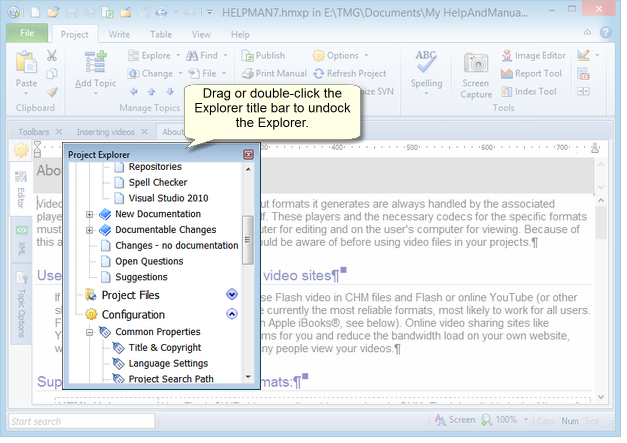
•Double-click on the Project Explorer title bar or drag it out of the program window to display it as a separate window.
Undocking the Project Explorer
•To re-dock the Project Explorer double-click on its title bar again.
Undocking, docking and pinning Explorer panes
•Click in the title bar and drag the new Explorer pane out to the left to display it in a separate window.
•Drag it onto one of the light blue location icons When you are dragging an Explorer pane light blue "location icons" will appear on each side of the HM window. Drag the mouse cursor onto one of these icons to dock the pane on that side of the window. on each side of the window.
•Double-clicking on an Explorer pane title bar also docks and undocks.
•You can also "pin" individual Explorer panes to the left margin by clicking on the pin tool in the pane's title bar (see below).
•Click on the "pin" tool in the Explorer title bar to "pin" the Explorer to the left margin of the window. The Explorer will then be hidden while you are editing and will only be displayed when you mouseover the Explorer title in the left margin.
•To "unpin" just mouseover the Explorer title to display it and then click on the pin tool in the title bar again.