Once you have completed a couple of topics you will want to publish your output to see what your finished product is going to look like. You can output any of the formats supported by Help+Manual at any time – you don't have to decide in advance what format you are building your project for. The only thing you may need to do before you begin is install the necessary Microsoft help compilers for HTML Help and Visual Studio Help (VS Help is only relevant for .NET program code documentation).
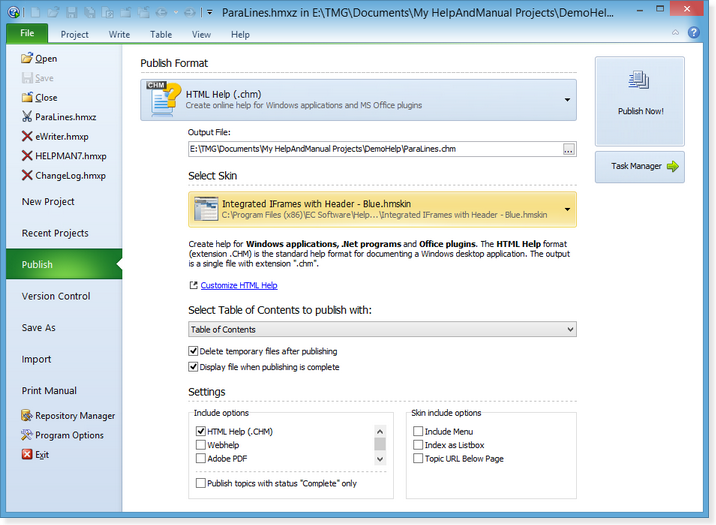
1.Save your project, then click on the File menu and select Publish. This displays the Publish interface:
Help+Manual Publish Dialog
2.Select the format you want to publish to from the Publish Format drop-down list.
3.Check the output file name and location in the Output File: field and change them if you want.
4.Make sure that the Display file when publishing is complete checkbox is selected, leave all other settings as they are.
5.Click on the Publish Now button. In a few moments you will be able to admire your finished product.
Notes on individual output formats:
MS HTML Help/CHM: If you haven't done it already, you need to install the free Microsoft HTML Help Workshop package so that you have the compiler that Help+Manual needs to turn your project into a CHM help file. See "Installing the Microsoft help compilers" further below on this page for details.
WebHelp When you publishWebHelp always use an empty folder because this format generates a large number of output files. The program will suggest creating a folder called \HTML inside your project directory, which is a good choice for quick testing.
ePUB and Kindle Mobi eBooks Before publishing ePUB or Kindle eBooks please check the eBook sections in Configuring Your Output and Publishing Formats. You need to install a program from Amazon to generate Kindle Mobi eBooks. You will also need to install the free Calibre eBook viewer reader software so that you can preview your eBooks locally on your Windows computer.
eWriter Help This is a special format unique to Help+Manual. See the eWriter chapter for information before using it.
Adobe PDF The layout of your PDF output is controlled by separate template files. See Adobe PDF for details.
Unless you have already done so you need to download and install the free Microsoft compiler for HTML Help CHM files if you are planning on using this format. You can find the correct version of this compiler on the EC Software website, here:
Visual Studio Help compiler for .NET programmers (MS Help 2 & MS Help 3):
You only need to publish to the Visual Studio Help formats if you are a Visual Studio .NET programmer. These help formats are only used for documenting programming components added to Visual Studio .NET. The compiler for VS MS Help 2 (HXS) is also only available to programmers working with Microsoft Visual Studio .NET 2008. VS MS Help 3 (MSHC) does not require a compiler.
For details on using this format see the chapter on Visual Studio Help in the More Advanced Procedures section.
Setting the compiler paths:
After installing the compilers go to View > Program Options > Compilers and make sure that Help+Manual knows where to find them. The HTML Help compiler executable is called hhc.exe.