The user interface of Help+Manual is incredibly easy to learn: it comes with a familiar three-pane layout, and feels like word processor. However, while easy and comfortable to use, a huge set of powerful tools are right at your fingertips. Help+Manual saves its content as pure XML, a safe investment for your work.
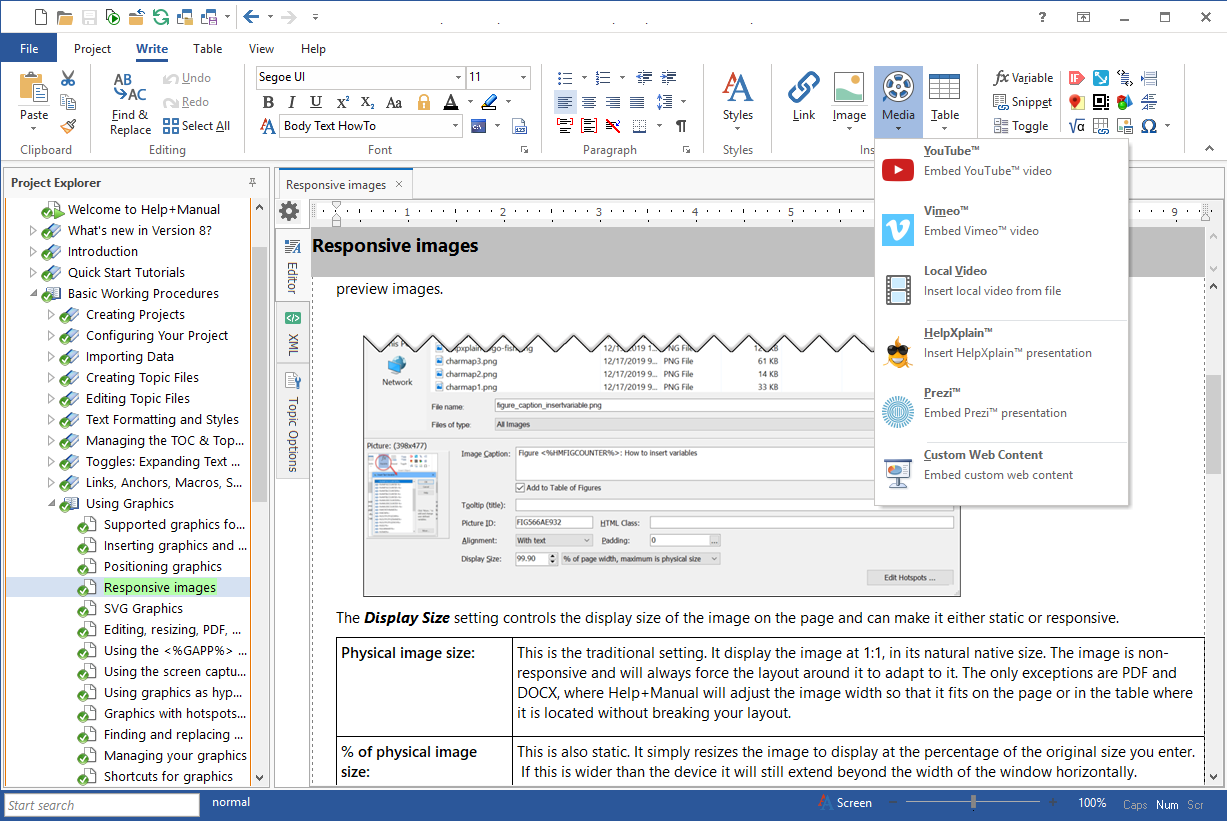
Help+Manual main form with topic text editor active

Help+Manual start screen, user assistance
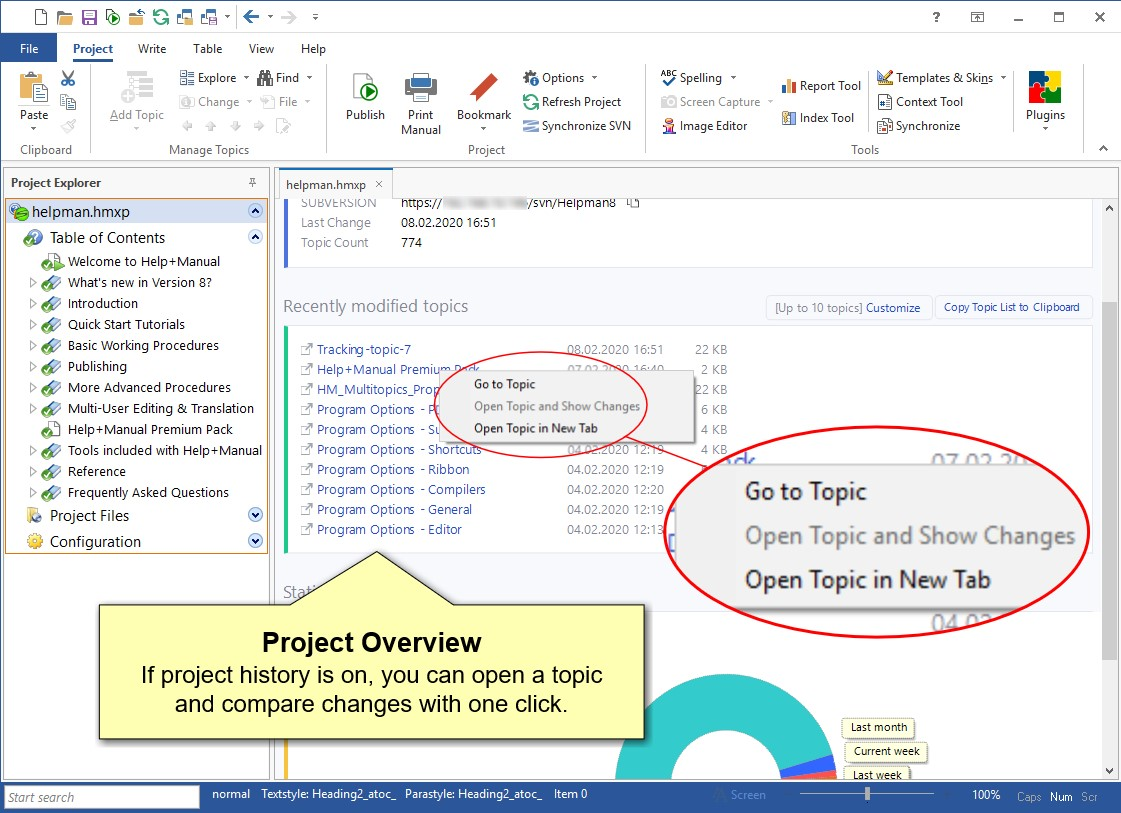
Project overview with quick statistics
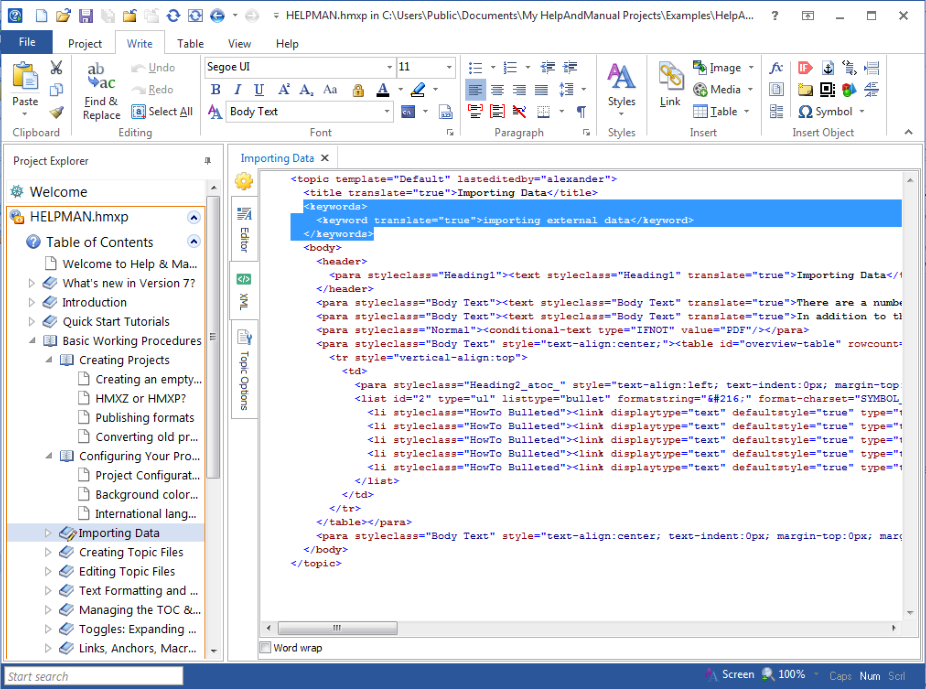
XML source code editor

File menu with Save As screen
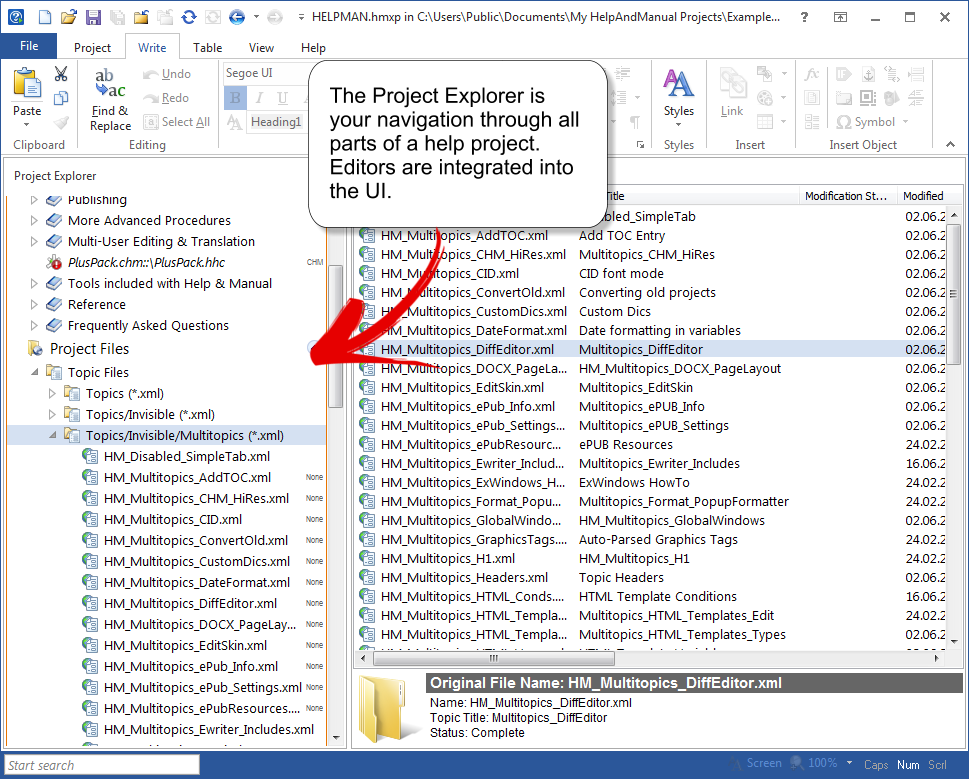
Project Explorer - the navigation center
Features you won't find in other help tools
Why does Help+Manual make such a difference? It's the painstaking attention to detail, the wealth of helpful small features that make your daily work with Help+Manual such a pleasure.
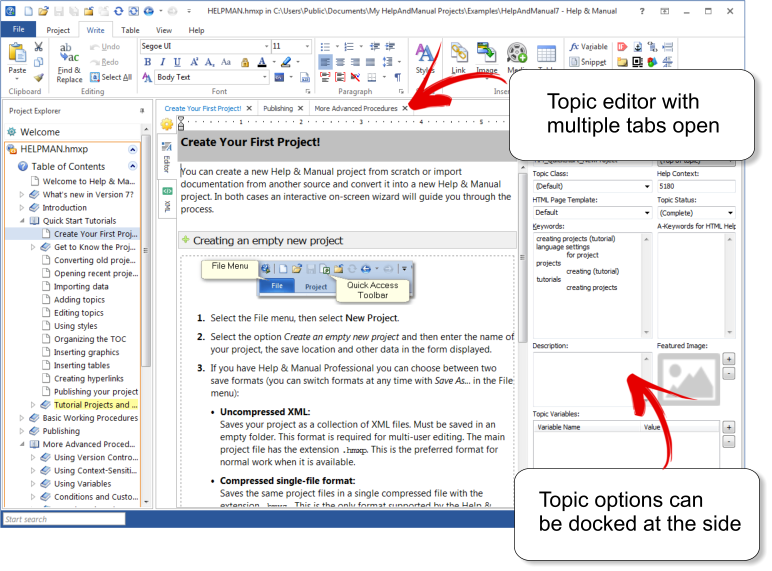
Open multiple topics in separate tabs, edit topic text and page properties side by side

Multiple TOCs and conditional tagging
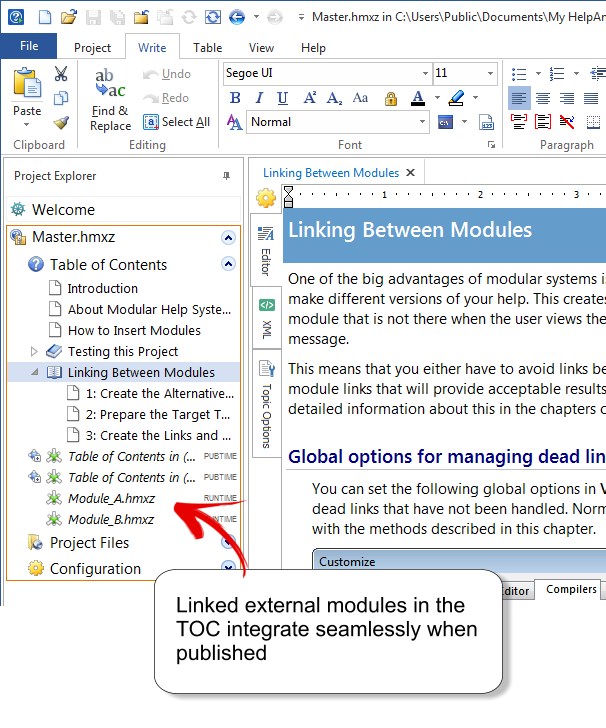
The single-source approach goes far beyond multiple TOCs - here are two external modules seamlessly merged when published

Using variables makes single-sourcing a lot easier - you can use variables literally everywhere in Help+Manual
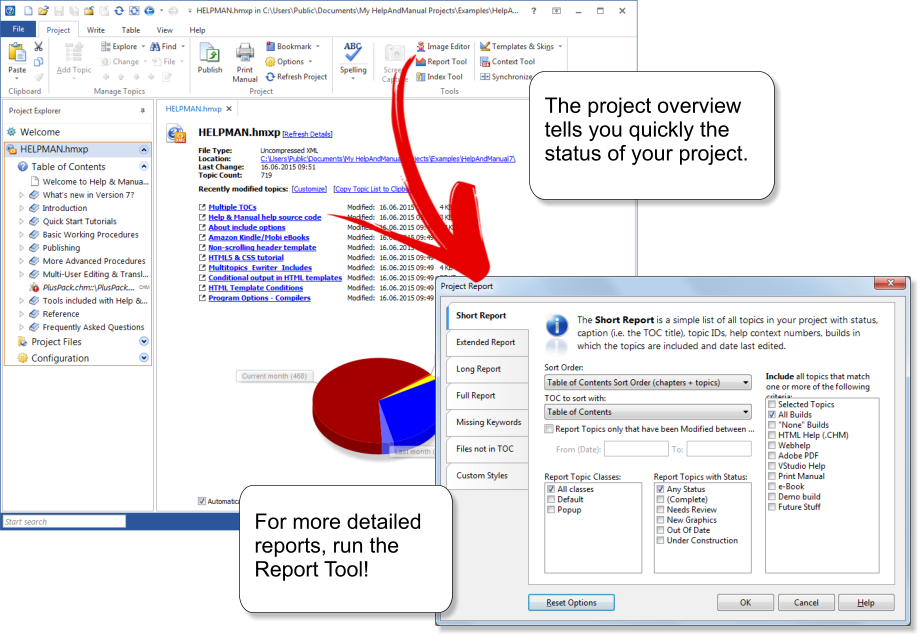
The project report gives you a detailed overview of the state of your help project
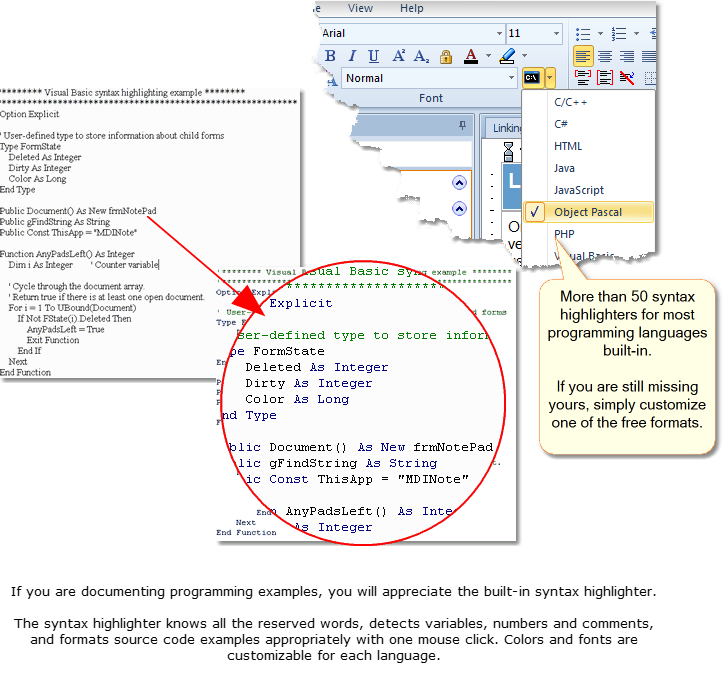
Documenting source code examples is easy - with code formatters for more than 50 programming languages
Publishing Content
With Help+Manual, you write content once and publish to many output formats, ranging from compiled HTML Help to Webhelp, to fully formatted PDF files to the new Apple iPad e-book format.
Build conditions - predefined and user defined - allow different content for every output format. User-defined builds can be used to create customized versions of your online help for a client. And if that isn't enough, the export can be fully automized with publishing tasks and command line options.
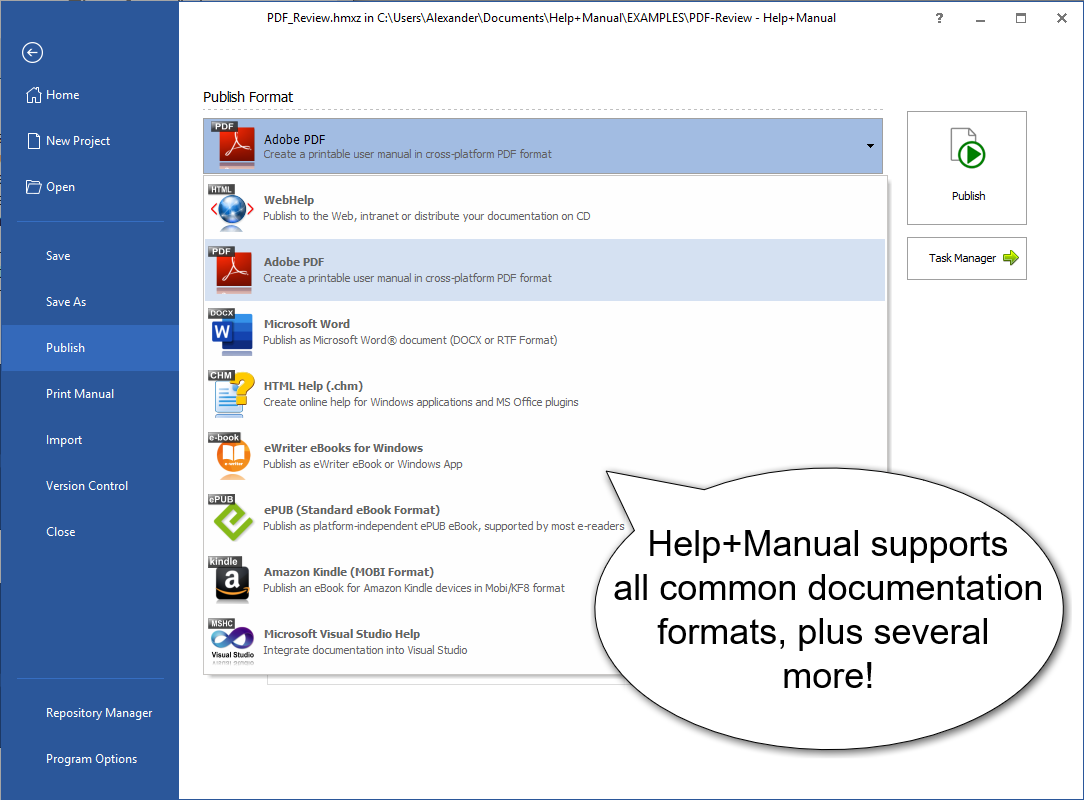
Help+Manual's output formats
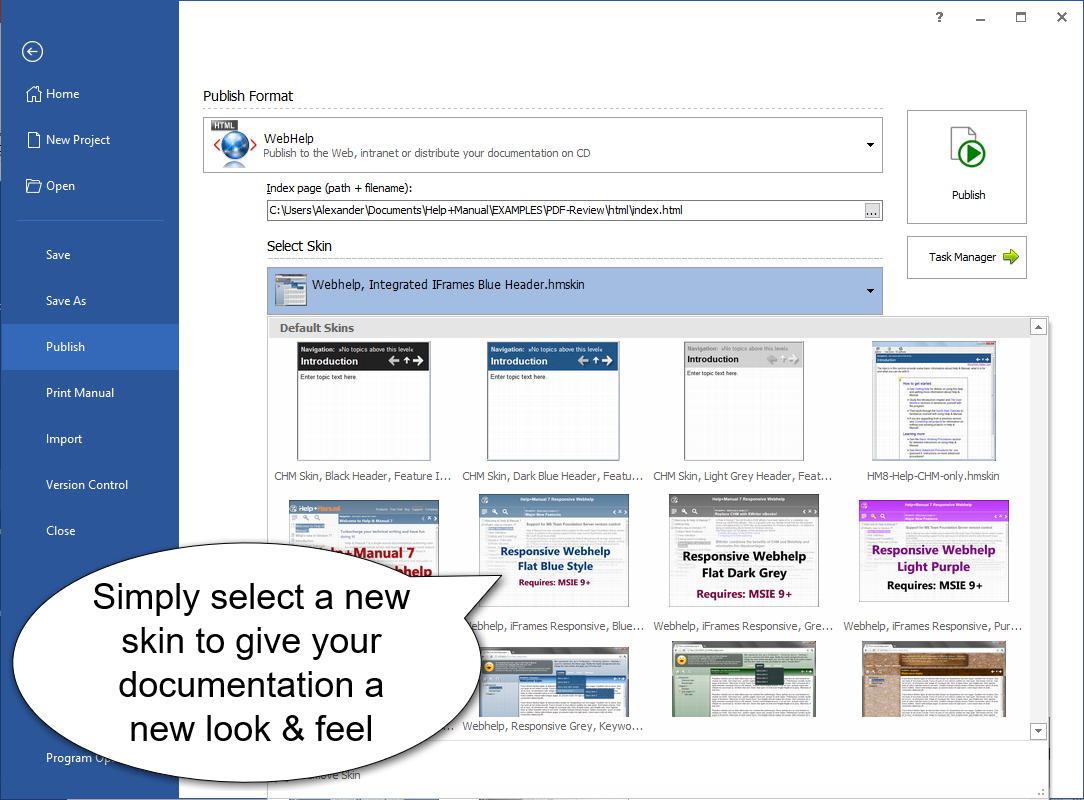
Selecting a skin for for publishing
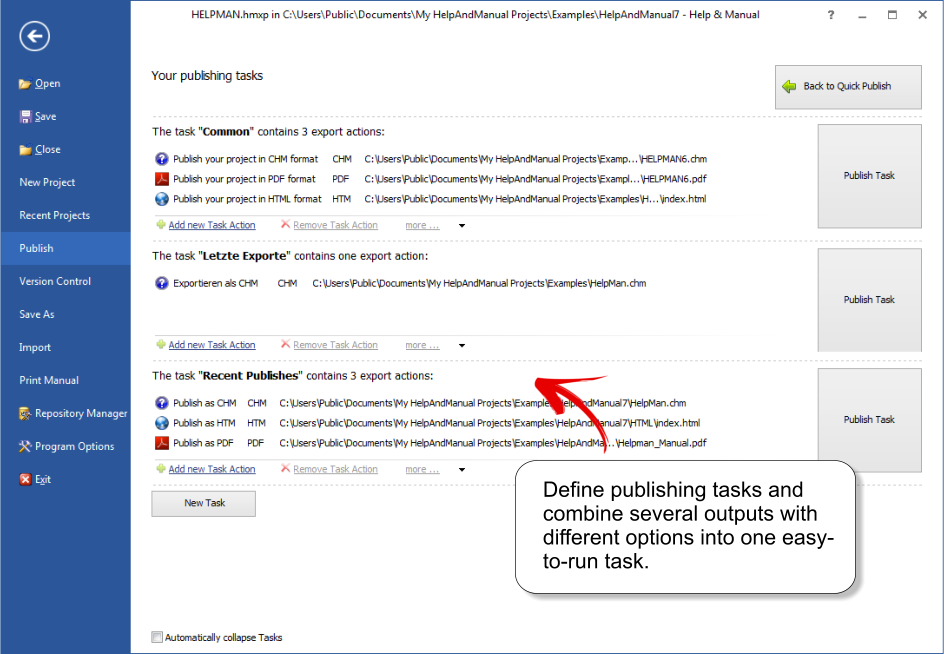
Publishing tasks combine multiple outputs into one comfortable task
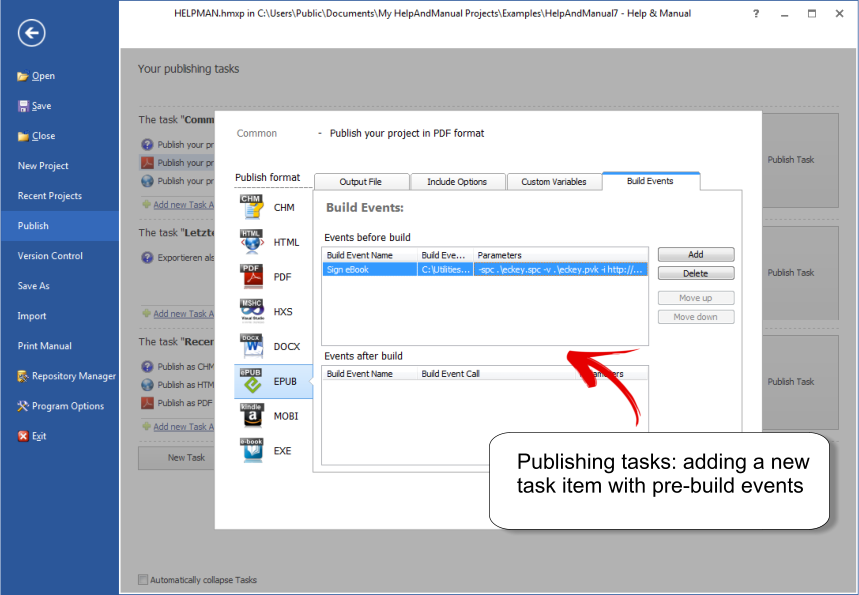
Publishing tasks can be initiated from the command line
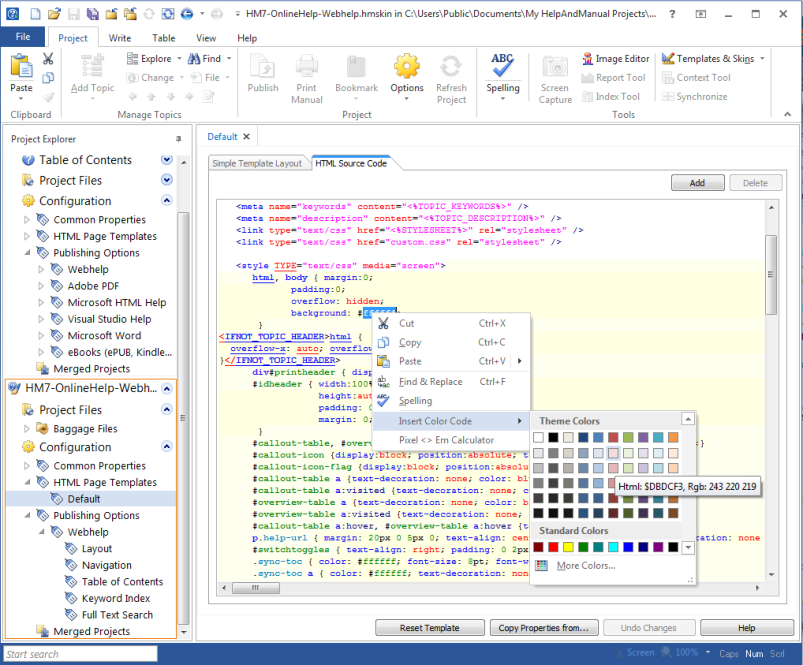
HTML template editor for Webhelp output
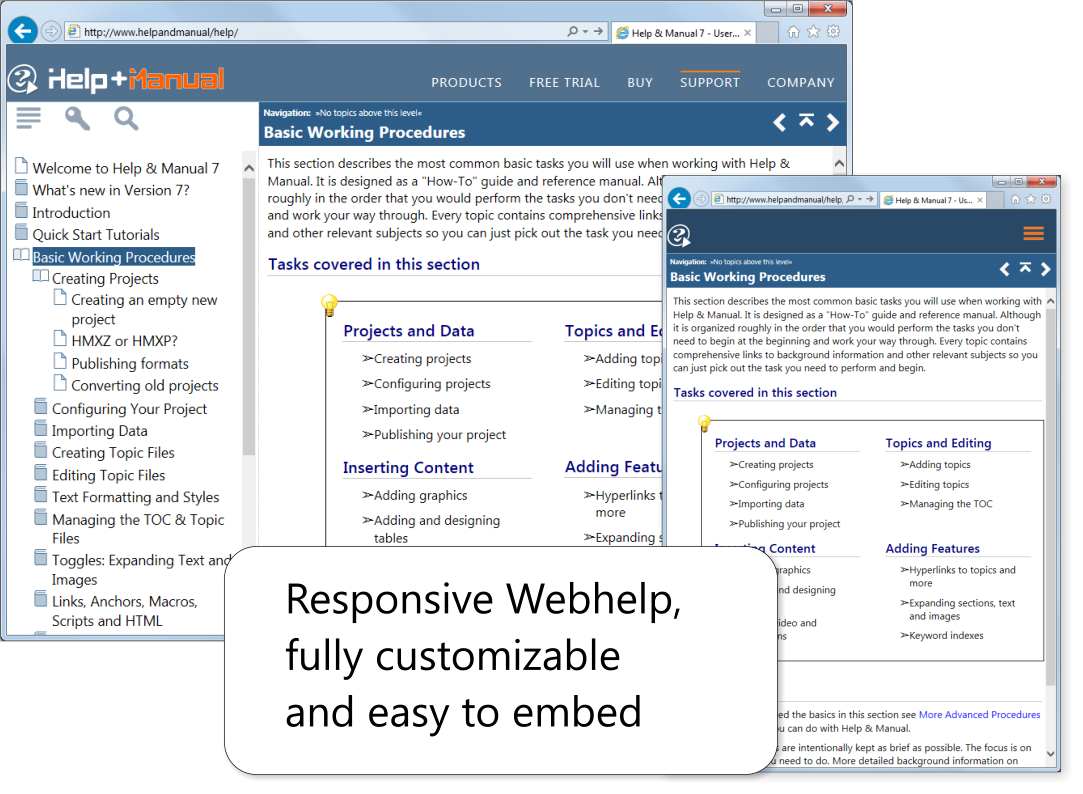
Responsive Webhelp is easy to integrate into your website
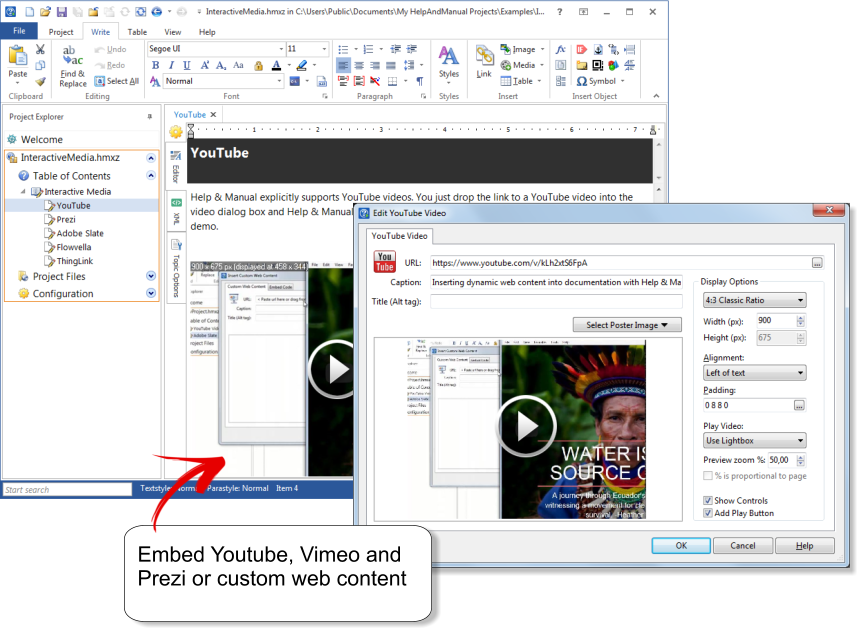
Inserting a YouTube video in Help+Manual
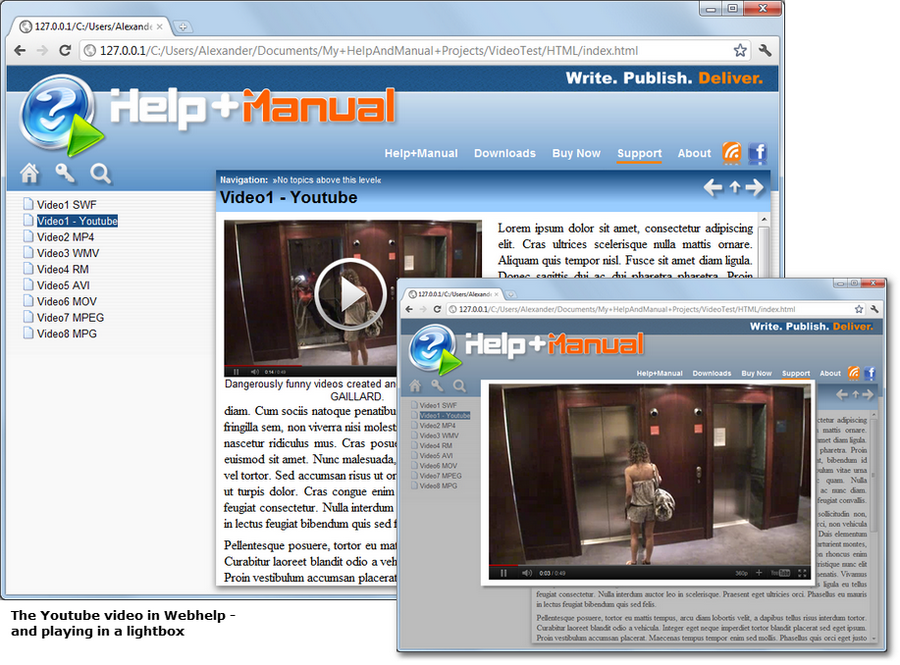
YouTube video playing in Webhelp in a lightbox overlay
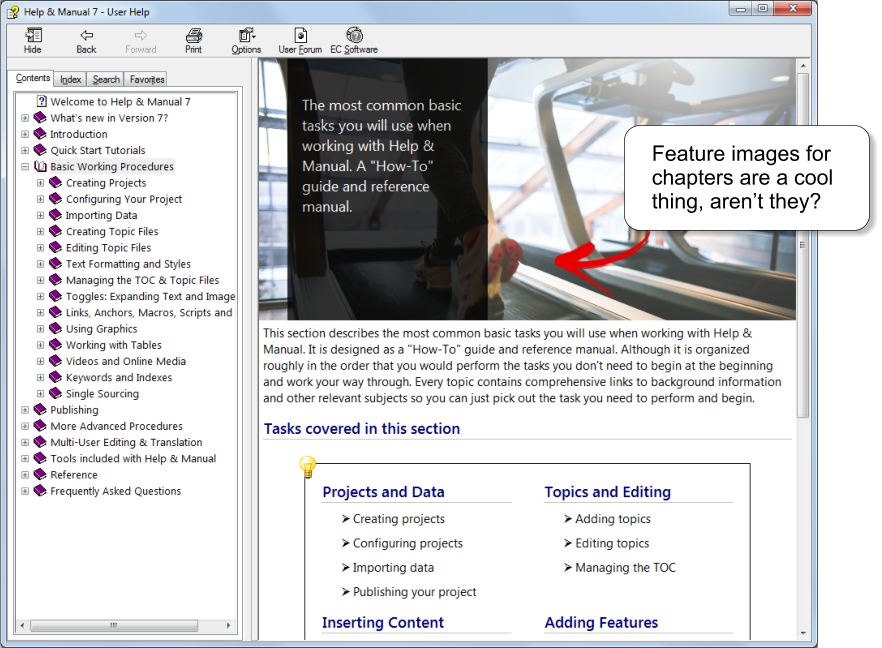
Same project published as Microsoft HTML Help (.chm)
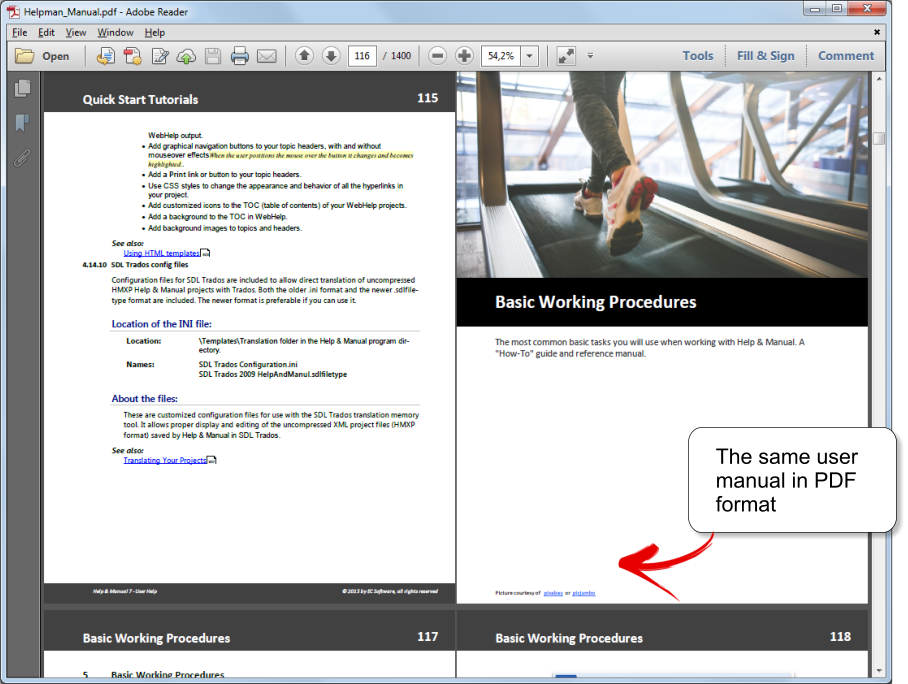
Once more, this time as PDF manual. You define the print layout.
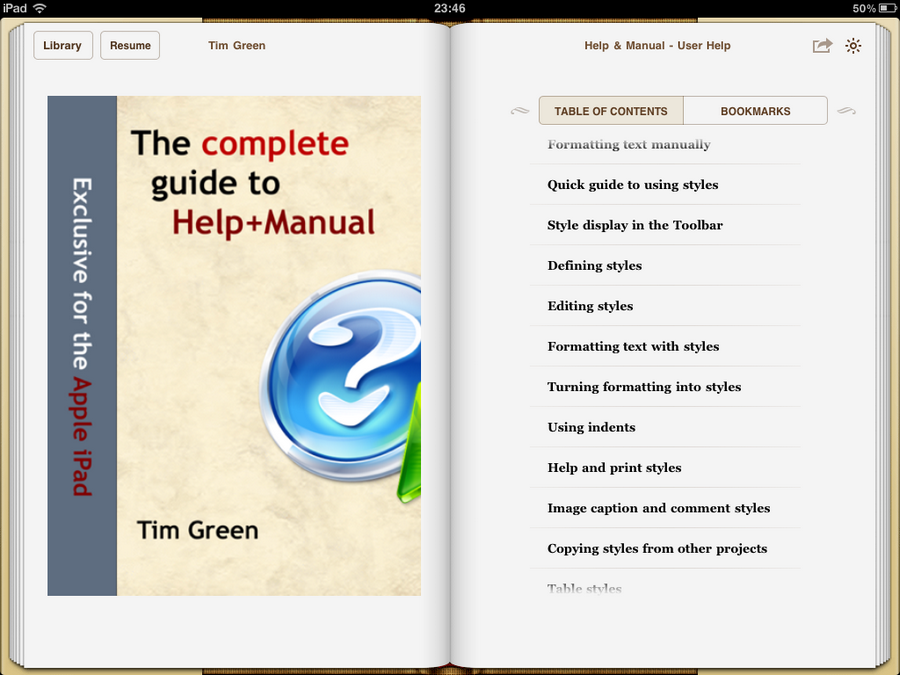
Help+Manual can publish directly to the Apple iPad as well
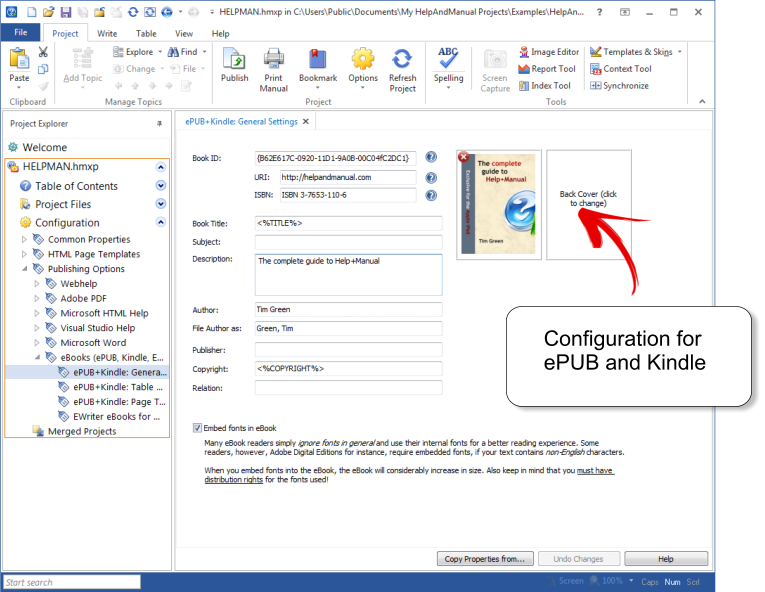
ePUB and Kindle configuration screen

E-book, opening on an iPad
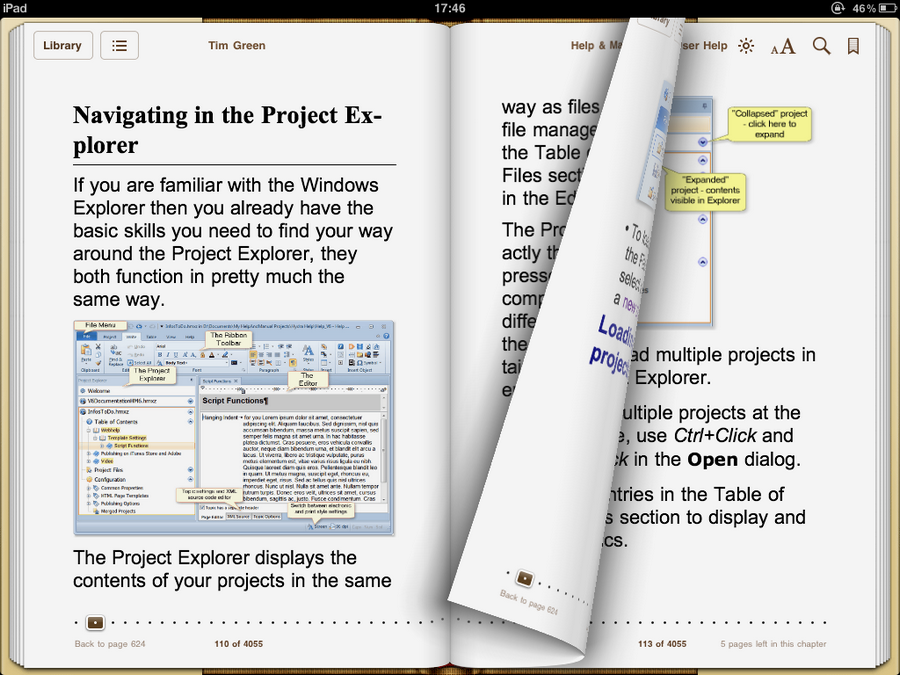
Two pages side by side in iBooks (landscape view)
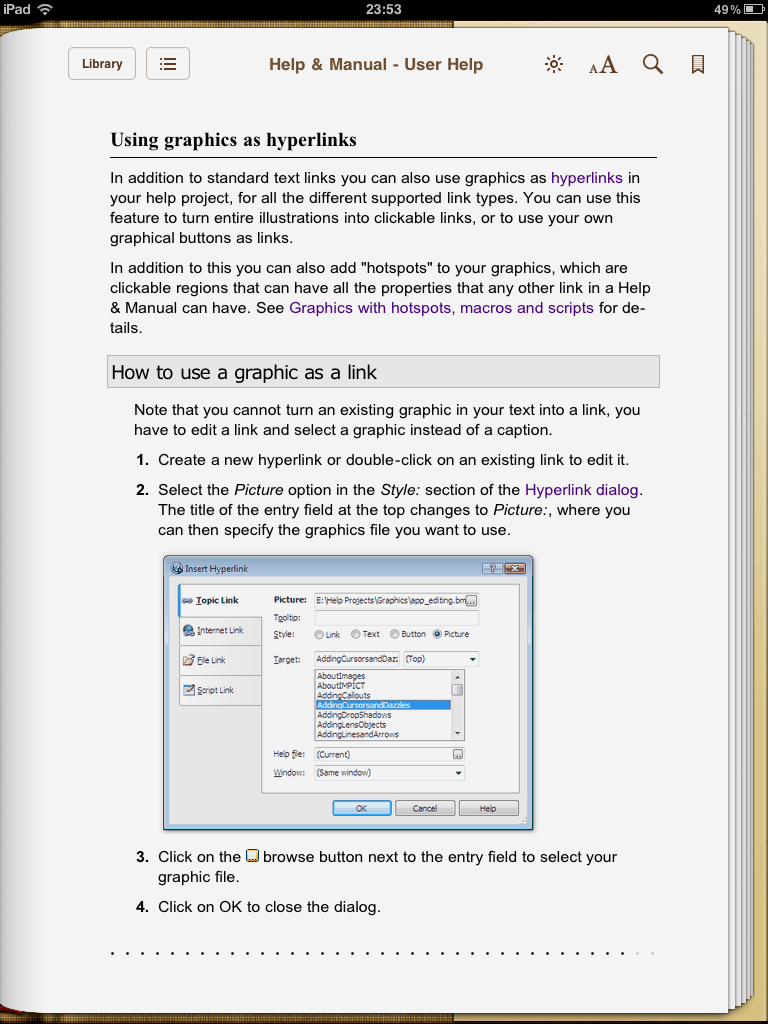
Single page in iBooks (portrait view)